To give Cursor access to a local file in Remote-SSH, copy it from your laptop into the remote workspace, then attach or mention its remote path. A laptop path alone does not give the remote agent the file.
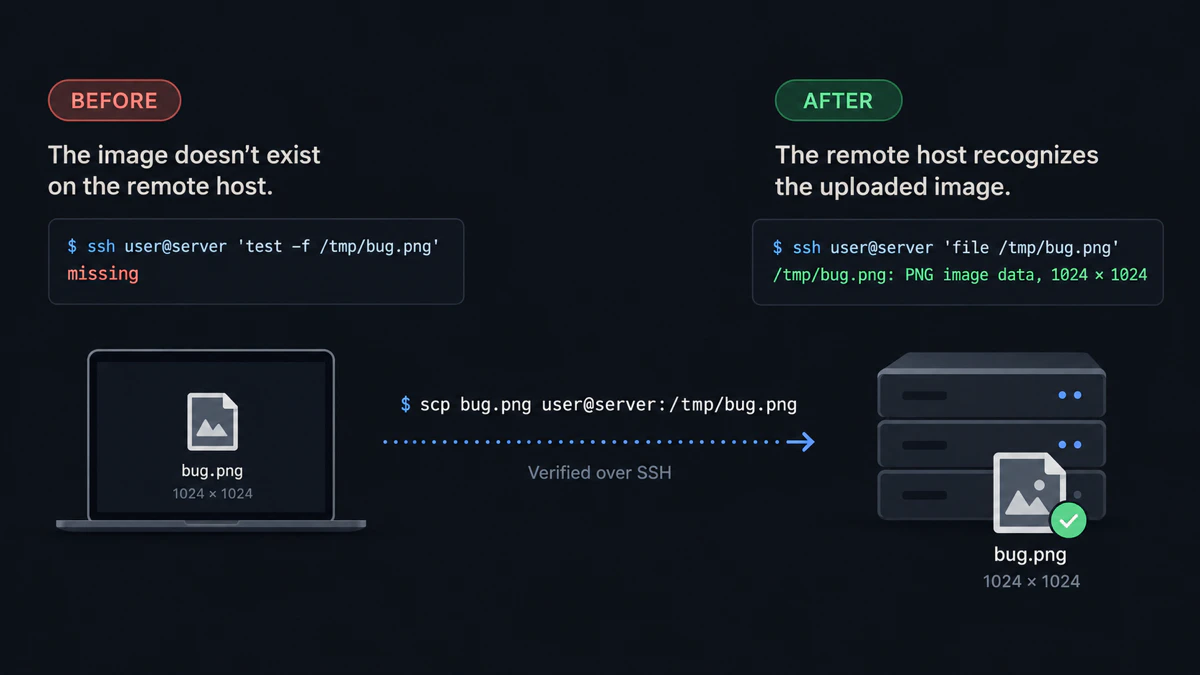
This is the filesystem boundary behind the Cursor failure: before upload the remote file is missing; after upload it is a valid PNG.
Why Cursor cannot access the local file
In a Remote-SSH window, Cursor’s tools run against the remote workspace. A path such as C:\Users\you\Desktop\bug.png or /Users/you/Desktop/bug.png describes the laptop filesystem, not the server filesystem.
A Cursor staff response confirms this behavior in a Remote-SSH local-document report: supported formats can be uploaded by content, but a local path reference cannot be resolved by the remote agent. Cursor’s documentation also explains how to add files already available to the workspace with @Files.
Upload the file with scp
The free manual solution is to copy the file into the remote workspace. Run scp from the laptop.
macOS or Linux
scp ~/Desktop/bug.png user@server:~/project/bug.pngExpected result: bug.png appears inside the remote project.
Windows through WSL
scp /mnt/c/Users/you/Desktop/bug.png user@server:~/project/bug.pngThe /mnt/c form follows Microsoft’s documented WSL filesystem mapping.
Expected result: the Windows file is copied from the WSL-visible path into ~/project/bug.png on the server.
Confirm it from the remote window
ls -lh ~/project/bug.pngExpected result: the integrated terminal prints the remote file and a non-zero size.
In Cursor chat, attach @bug.png or describe ~/project/bug.png.
Expected result: the attachment resolves to a path inside the remote workspace, and the agent can read it.
Stop uploading files one at a time
scp remains the right baseline for one named file. When the task includes several screenshots, a PDF and a recording, install vmup, complete the first SSH upload, and send the set as one remote folder:
vmup ./bug.png ./notes.pdf ./recording.movExpected result: vmup prints one Agent folder: path; paste the generated prompt into the Cursor thread already connected to the host.
Drag into the remote Explorer
If the file is already saved, drag it from the desktop into Cursor’s Remote-SSH Explorer. Cursor documents dragging workspace files into Agent as context; first make sure the file appears in the remote Explorer rather than only as a laptop attachment.
Expected result: the file becomes visible in the remote project tree and can be selected with @Files.
Common failures
- The attachment chip shows
C:\Users\…: the remote agent received a local path. Upload the file first. scpreports permission denied: copy into a directory owned by the SSH user, such as the project or home directory.- The file is on WSL but the agent is on another server: use
scp;/mnt/c/…only exists inside the local WSL environment. - The file uploaded outside the project: use the absolute remote path, or move it into the remote workspace before using
@Files.
For several saved files, read how to scp multiple files. For the full agent handoff, read send files to a remote coding agent. For the same filesystem boundary in a terminal agent, see paste an image into Claude Code over SSH.
Last tested with
- Manual transfer: macOS 26.6, OpenSSH 10.3p1, localhost SSH target, September 16, 2026
- Linux transfer: Ubuntu 26.04, OpenSSH 10.2p1, Lima VM to localhost SSH target
- Batch workflow: vmup 0.4.0
- Cursor behavior: Cursor IDE 3.16.17 report and staff response linked above
- WSL path form:
/mnt/c/...transfer executed under Ubuntu 26.04 and checked against Microsoft’s WSL documentation; native WSL was not available
Quick answers
Why can’t Cursor analyze a local file over Remote-SSH? The agent runs against the remote workspace. A local Windows or macOS path is not a file path on that server.
Do any attachments work over Cursor Remote-SSH? Some supported formats are uploaded by content. If the attachment remains a local path, copy it into the remote workspace before asking the agent to read it.
How do I give Cursor a screenshot on a remote VM?
Upload the PNG with scp, drag it into the remote Explorer, or send a batch, then reference the remote file.
What should I check before using @Files? Confirm the file appears in the remote Explorer or can be listed from the remote integrated terminal.
Disclosure: vmup is maintained by the author of this article. The scp and Remote-SSH drag-and-drop methods above work without vmup.